 Boron
Open the editor
Boron
Open the editor
Boron is a terminal screenshot generator
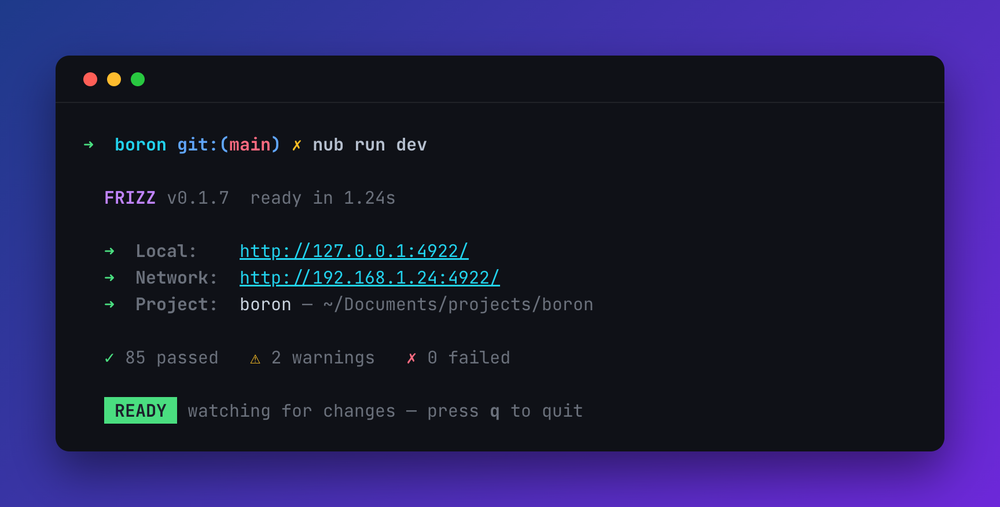
Paste real terminal output, or type it, and Boron keeps the ANSI colors, lets you edit the result like a document, and exports it as a PNG, SVG, JPEG or WebP. It runs in the browser and it is free. There is no upload: parsing and rendering happen on your machine.
Everything Boron draws can exist in a real terminal. The palette is chalk's sixteen colors, the modifiers are chalk's modifiers, and the automatic styling is expressed as chalk marks rather than hand-picked hex, so the picture you compose and the escape sequence you copy out are the same thing. Mock up what you want a program to print, then hand the ANSI or the chalk snippet to whoever is writing it.
What it does
- Keeps the colors of pasted output. ANSI escape codes are parsed in full, including 256-color and truecolor, and rich text is read from the clipboard of the terminals that write it.
- Edits like a document. Select any run and recolor it, or type your own. Colors are chalk's sixteen names rather than hex values, so switching theme re-maps them.
-
Selects a rectangle, not a run. Terminal output is a grid, so the thing to restyle is often
vertical: one column of a table, the
treegutter, the timestamps down the left. Hold Alt (⌥ on a Mac) and drag to select exactly those cells on every row. -
Renders command lines bright and output dim. A line opening with
$,❯, a bare>or oh-my-zsh's➜is treated as a command. - Eight themes. Boron, VS Code Dark+, Dracula, Tokyo Night, Catppuccin Mocha, Nord, One Dark and Solarized Dark, each with a matching set of backdrops.
- Exports PNG, SVG, JPEG or WebP, or copies the image straight to the clipboard. The SVG embeds the fonts it uses, so it renders the same everywhere.
- Copies the text back out as raw ANSI, a runnable chalk snippet, or plain text.
- Shares as a link. The whole document and its settings travel in the URL, so a link opens the same picture for whoever receives it.
How to take a terminal screenshot with the colors kept
-
Copy the output in your terminal. Most terminals that write rich text do it on an ordinary copy; the table
below says which need a setting or a different shortcut. Any terminal can also put the raw escape codes on the
clipboard, for example
git log --color=always | pbcopy. - Paste it into the editor. Escape codes and rich text are both read, and the colors map onto the active theme.
- Pick a theme and a backdrop, set the width in columns, and add a title bar if you want one.
- Save it as an image, copy it to the clipboard, or copy a link to the document.
Which terminals copy their colors
A terminal that copies rich text hands Boron the colors directly. One that copies plain text still works if the
escape codes are in the text, which is what piping a command through pbcopy or xclip
gives you.
| Terminal | Colors on copy | How |
|---|---|---|
| Ghostty | Yes, by default | |
| macOS Terminal.app | Yes, by default | |
| VS Code, Cursor (editor) | Yes, by default | |
| VS Code, Cursor (terminal) | Not on an ordinary copy | "Copy Selection as HTML" in the terminal's menu |
| iTerm2 | Not on an ordinary copy | ⌘⌥C, or turn on "copy with styles by default" |
| Konsole | Yes, by default | |
| Tabby | Yes, by default | |
| GNOME Terminal, Ptyxis | Not on an ordinary copy | "Copy as HTML" in the context menu |
| Windows Terminal | Off by default | Turn on copyFormatting in the settings |
| ConEmu | Off by default | Turn on CTS.HtmlFormat |
| PuTTY | Off by default | Turn on RTF copy in the selection settings |
| kitty | Escape codes in plain text | Bind copy_ansi_to_clipboard |
| Alacritty, WezTerm, Rio, xterm, Hyper, Zed, JetBrains, tmux, screen | Plain text only | Pipe the command's output to the clipboard instead |
Questions
How is this different from carbon.now.sh or ray.so?
Those tools syntax-highlight source code by language. Boron reads the ANSI escape codes a program printed, so a
screenshot of a dev server, a test run or a colored ls looks the way the terminal showed it.
Can I convert ANSI output to SVG?
Yes. Paste the output and save as SVG. The file embeds the font faces it uses and stays sharp at any size, which suits a README or documentation.
My terminal only copies plain text. Does it still work?
Yes. Boron reads the escape codes themselves, so pipe a command's colored output to the clipboard and paste that. Terminals with no rich copy at all, such as Alacritty, WezTerm and tmux, still get the command-line highlighting.
Does anything get uploaded?
No. There is no server; parsing and rendering happen in your browser. A share link carries the document in the URL itself.
Is the source available?
Yes, at github.com/colinhacks/boron.